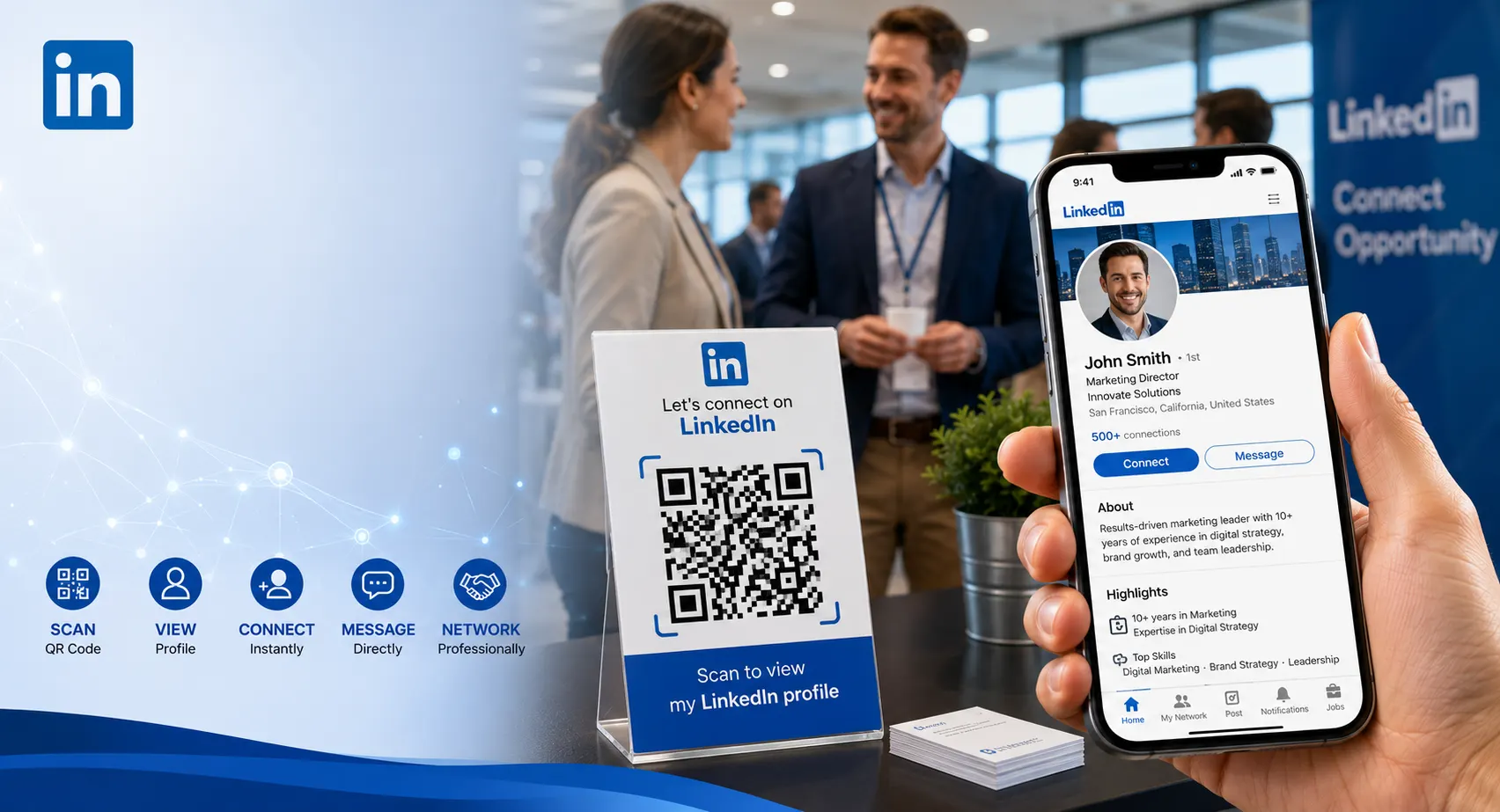
Networking is one of the most valuable aspects of professional growth, and LinkedIn has become the world’s leading professional networking platform. However, manually searching for profiles or typing long LinkedIn URLs can be inconvenient.
A QR code for your LinkedIn profile allows people to connect with you instantly. Whether you’re attending conferences, job fairs, business meetings, networking events, or client presentations, a quick scan can open your LinkedIn profile in seconds.
This guide explains how to create a LinkedIn QR code, where to use it, and how it can help expand your professional network.
Table of Contents
- What Is a LinkedIn QR Code?
- Benefits of Using a LinkedIn QR Code
- How to Create a QR Code for Your LinkedIn Profile
- Where to Use Your LinkedIn QR Code
- Best Practices
- Common Mistakes to Avoid
- Frequently Asked Questions
What Is a LinkedIn QR Code?
A LinkedIn QR code is a scannable code that opens your LinkedIn profile when someone scans it using their smartphone.
Instead of searching for your name manually, users can instantly access:
- Your professional profile
- Work experience
- Skills and endorsements
- Recommendations
- Portfolio links
- Professional achievements
This makes networking faster, easier, and more professional.
Create Your LinkedIn QR Code for Free
Generate QR codes for LinkedIn, websites, resumes, business cards, social profiles, and more.
Create QR CodeBenefits of Using a LinkedIn QR Code
Instant Networking
Allow people to connect with you immediately.
Professional Branding
Create a modern and tech-savvy first impression.
No Typing Required
Eliminate profile search errors and confusion.
Better Visibility
Increase profile visits and connection requests.
How to Create a QR Code for Your LinkedIn Profile
Step 1: Open Your LinkedIn Profile
Log in to LinkedIn and navigate to your public profile page.
Step 2: Copy Your Profile URL
Copy the full LinkedIn profile link from your browser.
Step 3: Open a QR Code Generator
Visit a QR code generator and select the URL option.
Step 4: Paste Your LinkedIn URL
Paste the copied LinkedIn profile URL into the generator.
Step 5: Generate the QR Code
Create the QR code and customize it if desired.
Step 6: Download and Test
Scan the QR code using multiple devices to verify it opens your profile correctly.
Grow Your Professional Network Faster
Create QR codes that instantly connect people to your LinkedIn profile and professional brand.
Generate LinkedIn QR CodeWhere Can You Use Your LinkedIn QR Code?
- Business cards
- Resumes and CVs
- Email signatures
- Conference badges
- Networking events
- Trade show materials
- Portfolios
- Personal websites
- Presentation slides
- Marketing materials
Why Add a LinkedIn QR Code to Your Resume?
Recruiters increasingly review LinkedIn profiles during the hiring process.
Including a LinkedIn QR code on your resume allows employers to:
- Verify experience
- View recommendations
- Review certifications
- Explore project portfolios
- See mutual connections
This can help strengthen your professional credibility.
Best Practices for LinkedIn QR Codes
- Use a complete and updated LinkedIn profile.
- Customize your LinkedIn URL if possible.
- Add a clear call-to-action.
- Use high-resolution QR codes.
- Test before printing.
- Ensure your profile is public.
A QR code is only as effective as the profile it links to. Keep your LinkedIn profile updated and professional.
Common Mistakes to Avoid
- Linking to incomplete profiles
- Using outdated profile URLs
- Printing low-quality QR codes
- Making QR codes too small
- Forgetting to test before publishing
Static vs Dynamic LinkedIn QR Codes
| Feature | Static | Dynamic |
|---|---|---|
| Editable Link | No | Yes |
| Analytics | No | Yes |
| Best For | Personal Use | Marketing & Branding |
Create Professional LinkedIn QR Codes Today
Generate QR codes for LinkedIn profiles, resumes, portfolios, websites, and business networking.
Start CreatingFrequently Asked Questions
Can a QR code open my LinkedIn profile directly?
Yes. When scanned, the QR code can open your LinkedIn profile instantly on mobile devices.
Should I add a LinkedIn QR code to my resume?
Yes. It can help recruiters access your profile quickly and view additional professional information.
Can I use a LinkedIn QR code on business cards?
Absolutely. Business cards are one of the most popular uses for LinkedIn QR codes.
Are LinkedIn QR codes free?
Most QR code generators allow you to create a basic LinkedIn profile QR code for free.
Final Thoughts
A QR code for your LinkedIn profile is a simple yet powerful networking tool. It helps professionals share their profiles instantly, build stronger connections, and create a modern networking experience.
Whether you’re a job seeker, entrepreneur, consultant, freelancer, or business professional, a LinkedIn QR code can make it easier for people to discover and connect with you.

Leave a Reply