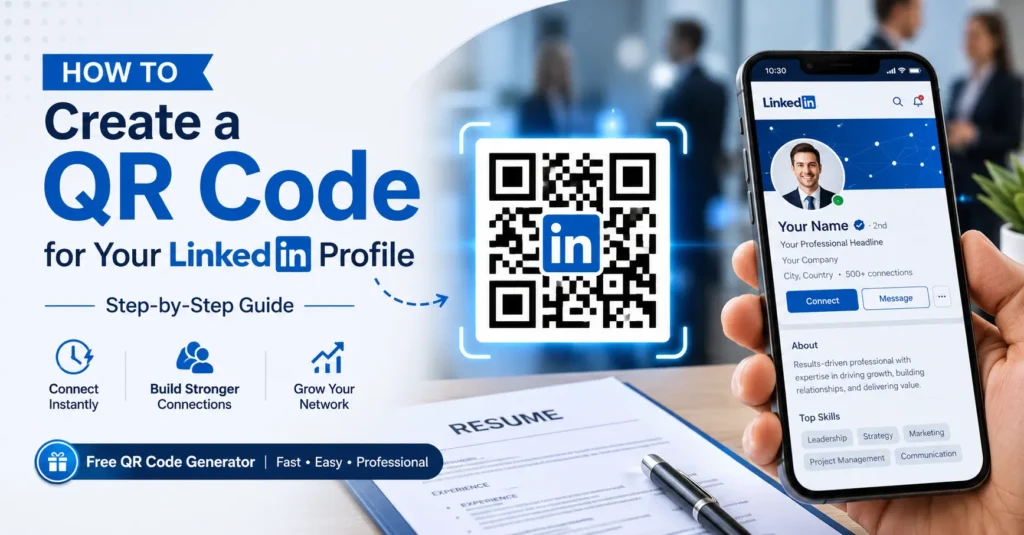
Networking is faster and more digital than ever. Instead of asking people to search for your LinkedIn profile manually, you can let them access it instantly with a QR code.
A QR code for your LinkedIn profile makes it easy for recruiters, clients, colleagues, and business contacts to connect with you. With one quick scan, they can view your professional experience, skills, recommendations, and contact details.
Whether you’re a job seeker, freelancer, entrepreneur, or corporate professional, a LinkedIn QR code can help you build stronger professional connections.
Table of Contents
- What Is a LinkedIn QR Code?
- Why Use a QR Code for LinkedIn?
- How to Create a LinkedIn QR Code
- Where to Use Your LinkedIn QR Code
- Best Practices
- Common Mistakes to Avoid
- FAQ
What Is a LinkedIn QR Code?
A LinkedIn QR code is a scannable QR code that opens your LinkedIn profile when someone scans it with their smartphone.
Instead of manually typing your LinkedIn URL or searching for your name, users can instantly access your profile and send a connection request.
The QR code can link directly to:
- Your LinkedIn profile
- Company page
- LinkedIn newsletter
- Portfolio section
- Professional showcase page
Create Your LinkedIn QR Code for Free
Generate professional QR codes for LinkedIn, resumes, business cards, websites, and social media profiles.
Create QR Code NowWhy Use a QR Code for Your LinkedIn Profile?
1. Faster Networking
People can connect with you immediately without searching for your profile manually.
2. More Profile Views
Removing friction increases the likelihood that someone will visit your profile.
3. Professional Appearance
A QR code adds a modern touch to resumes, business cards, and marketing materials.
4. Better Personal Branding
Showcase your experience, skills, certifications, and recommendations instantly.
5. Easy Mobile Access
Most networking happens on smartphones, making QR codes a natural solution.
How to Create a QR Code for Your LinkedIn Profile
Step 1: Copy Your LinkedIn Profile URL
Log in to LinkedIn and open your profile page.
Copy your public profile URL, which typically looks like:
https://linkedin.com/in/your-name
Step 2: Open a QR Code Generator
Visit a QR code generator and select the URL option.
Step 3: Paste Your LinkedIn URL
Paste the copied LinkedIn profile link into the URL field.
Step 4: Generate the QR Code
Click Generate QR Code to create your personalized LinkedIn QR code.
Step 5: Customize Your Design
You can personalize your QR code by:
- Adding your logo
- Using brand colors
- Changing QR code styles
- Adding a call-to-action
Step 6: Download and Test
Always test the QR code before sharing it publicly.
Grow Your Professional Network
Create a LinkedIn QR code that helps recruiters, clients, and professionals connect with you instantly.
Generate LinkedIn QR CodeWhere Should You Use a LinkedIn QR Code?
- Business cards
- Resumes and CVs
- Email signatures
- Conference badges
- Trade show materials
- Personal websites
- Portfolios
- Presentation slides
- Brochures
- Networking event materials
LinkedIn QR Code on Your Resume
Recruiters frequently check LinkedIn profiles before contacting candidates.
Adding a LinkedIn QR code to your resume allows employers to:
- Verify work experience
- View recommendations
- See certifications
- Review portfolio projects
- Explore professional achievements
This creates a stronger and more complete professional profile.
Best Practices for LinkedIn QR Codes
- Keep your LinkedIn profile updated.
- Use a professional profile photo.
- Customize your LinkedIn URL.
- Add a clear call-to-action.
- Print QR codes in high resolution.
- Test before publishing.
- Ensure your profile visibility settings are correct.
A QR code can drive profile visits, but a complete and optimized LinkedIn profile is what turns visitors into valuable connections.
Common Mistakes to Avoid
- Using outdated profile links
- Linking to incomplete profiles
- Printing blurry QR codes
- Making QR codes too small
- Forgetting to test before printing
Static vs Dynamic LinkedIn QR Codes
| Feature | Static QR Code | Dynamic QR Code |
|---|---|---|
| Editable URL | No | Yes |
| Scan Tracking | No | Yes |
| Best For | Personal Use | Professional Branding |
Start Sharing Your LinkedIn Profile Smarter
Create a professional LinkedIn QR code and make networking easier wherever you go.
Create Your QR CodeFrequently Asked Questions
Can a QR code open my LinkedIn profile directly?
Yes. When scanned, the QR code can open your LinkedIn profile instantly on a smartphone or computer.
Should I add a LinkedIn QR code to my resume?
Yes. It helps recruiters quickly access your professional profile and learn more about your experience.
Are LinkedIn QR codes free?
Most QR code generators offer free static QR codes that can link directly to your LinkedIn profile.
Can I customize my LinkedIn QR code?
Yes. Many QR code generators allow custom colors, logos, and branding elements.
Final Thoughts
A QR code for your LinkedIn profile is a simple but powerful networking tool. It removes barriers to connection, increases profile visibility, and helps professionals build stronger relationships.
Whether you’re attending networking events, applying for jobs, or growing your personal brand, a LinkedIn QR code can make professional connections faster and easier.

Leave a Reply