
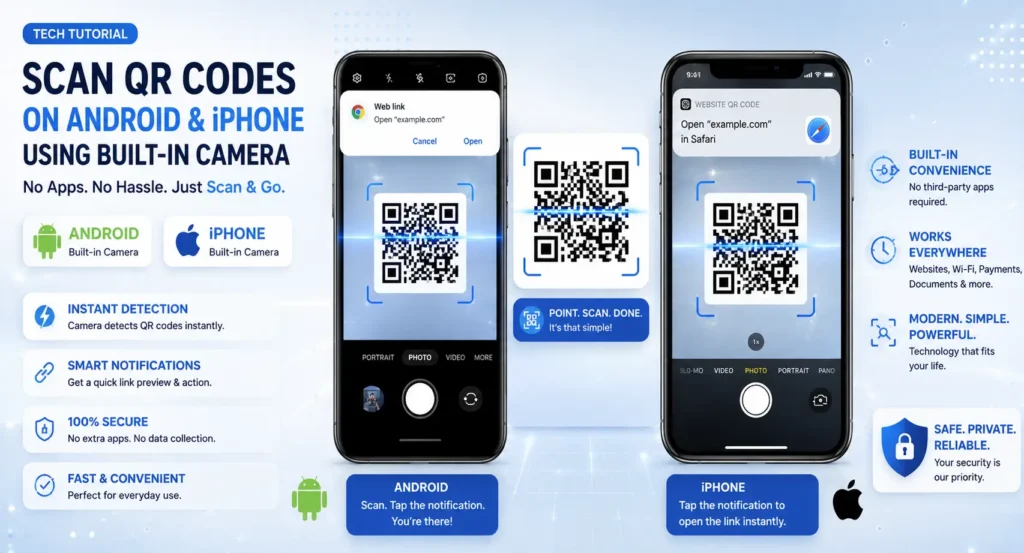
Many people still think they need a special QR code scanner app to scan QR codes. The truth is that most modern smartphones can scan QR codes directly using their built-in camera apps.
Whether you’re using an iPhone, Android phone, or tablet, scanning a QR code is usually as simple as opening your camera and pointing it at the code.
This guide explains how to scan a QR code without a QR code app, along with troubleshooting tips if scanning isn’t working.
Table of Contents
- Do You Need a QR Code App?
- How to Scan QR Codes on iPhone
- How to Scan QR Codes on Android
- Using Google Lens
- Common Scanning Problems
- Safety Tips
- FAQ
Do You Need a QR Code App?
In most cases, no. Modern smartphones include QR code scanning capabilities directly within the camera application.
This means you can scan QR codes without downloading additional software, saving storage space and reducing security risks associated with unknown scanner apps.
Create Your Own QR Codes for Free
Generate QR codes for websites, PDFs, menus, WiFi, payments, and more in seconds.
Create QR CodeHow to Scan a QR Code on iPhone
If you’re using an iPhone running iOS 11 or later, QR scanning is built into the Camera app.
Steps:
- Open the Camera app.
- Point the camera at the QR code.
- Wait a few seconds.
- A notification banner will appear.
- Tap the notification to open the link.
No additional app installation is required.
How to Scan a QR Code on Android
Most Android devices now support QR scanning through the default camera app.
Steps:
- Open the Camera app.
- Point it toward the QR code.
- Keep the QR code centered.
- Wait for the scan notification.
- Tap the link that appears.
The exact interface may vary slightly depending on your device manufacturer.
Use Google Lens to Scan QR Codes
If your camera doesn’t automatically recognize QR codes, Google Lens can help.
How to Use Google Lens:
- Open Google Lens or the Google app.
- Select the Lens icon.
- Point your camera at the QR code.
- Google Lens will identify the content.
- Tap the detected link.
Google Lens can also scan QR codes from photos already saved on your device.
Need to Create a QR Code?
Generate QR codes for websites, videos, PDFs, payments, business cards, and more.
Generate QR CodeHow to Scan a QR Code From a Screenshot
Sometimes you receive a QR code image instead of a printed code.
iPhone:
- Save the image.
- Open it in Photos.
- Press and hold the QR code area if supported.
- Tap the detected link.
Android:
- Open the image in Google Photos.
- Tap the Google Lens icon.
- Allow Lens to scan the QR code.
- Open the detected content.
Why Won’t My QR Code Scan?
Several factors can prevent successful scanning.
- Poor lighting conditions
- Blurry camera lens
- Damaged QR code
- Low-quality printing
- QR code too small
- Unsupported camera settings
Quick Fixes
- Move closer to the QR code.
- Improve lighting.
- Clean your camera lens.
- Keep the QR code centered.
- Try Google Lens.
Most QR scanning issues are caused by poor lighting or blurry images rather than software problems.
QR Code Safety Tips
QR codes are generally safe, but it’s wise to follow a few precautions.
- Verify links before opening.
- Avoid scanning suspicious QR codes.
- Check website URLs carefully.
- Only download files from trusted sources.
- Be cautious when entering personal information.
Benefits of Built-In QR Scanning
- No extra apps required
- Faster scanning experience
- Less storage usage
- Better security
- Simple and convenient
Create Professional QR Codes Today
Build QR codes for websites, PDFs, YouTube videos, restaurant menus, events, and business marketing.
Start CreatingFrequently Asked Questions
Do all smartphones scan QR codes?
Most modern smartphones include QR scanning in their camera apps, although older devices may require Google Lens or a scanner app.
Can I scan a QR code from a photo?
Yes. Google Lens and many smartphone photo apps can scan QR codes from saved images.
Is Google Lens free?
Yes. Google Lens is available free on most Android devices and through Google apps on iPhone.
Do QR codes work offline?
The scanning process works offline, but opening links usually requires an internet connection.
Final Thoughts
Learning how to scan a QR code without a QR code app is easier than ever. Most modern smartphones already include built-in QR scanning capabilities through the camera app or Google Lens.
By using the tools already available on your device, you can quickly access websites, menus, PDFs, videos, payment links, and more without installing additional apps.

Leave a Reply