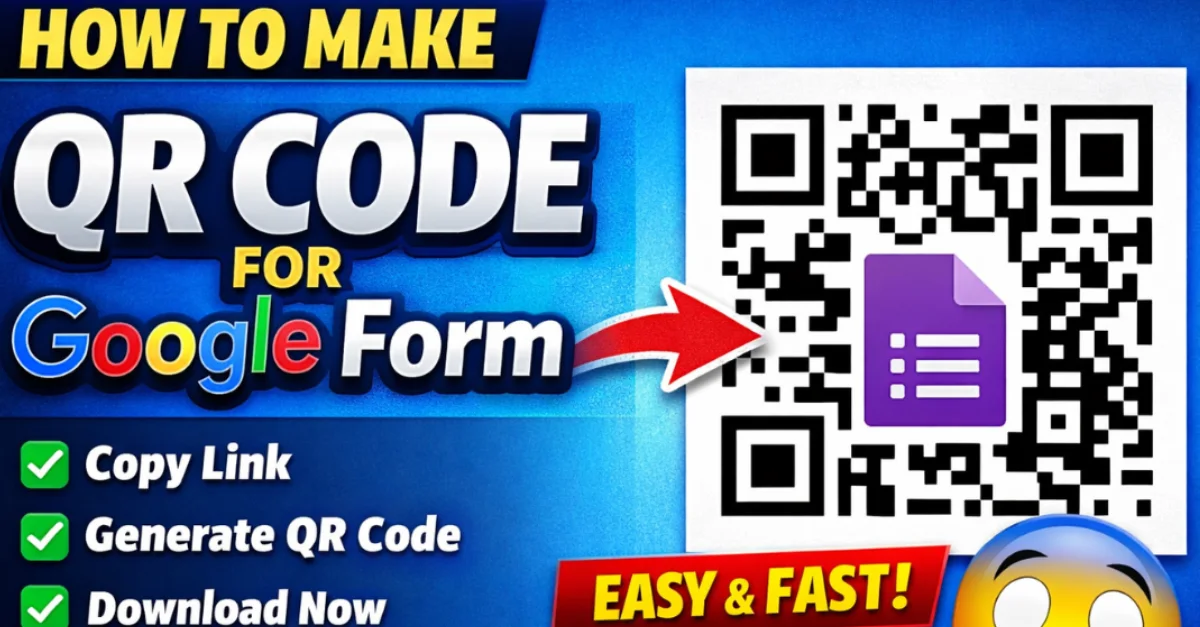
Google Forms is one of the best tools for collecting feedback, event registrations, and survey responses. However, sharing long form links can be inconvenient. The best solution is to create a Google Form QR code, allowing users to open your form instantly by scanning it.
In this guide, you’ll learn how to make a QR code for a Google Form for free using a free QR code generator.
Table of Contents
- What is a Google Form QR Code?
- Why Use a QR Code for Google Forms?
- How to Make a QR Code for a Google Form
- Video Tutorial: Create Google Form QR Code
- How to Create Custom QR Codes
- Where to Use Google Form QR Codes
- Best Practices
- Conclusion
- What is a Google Form QR Code
A Google Form QR code is a scannable code that opens your Google Form instantly when scanned using a smartphone camera.
It helps users access your form without typing a link manually. This improves accessibility and increases response rates.
A QR code generator converts your Google Form link into a scannable QR code that works on all devices.
Why Use a QR Code for Google Form
Using a QR code generator for Google Forms provides several benefits:
- Easy and instant access
- No need to type long links
- Faster response collection
- Ideal for print and digital use
- Professional appearance
Businesses, event organizers, and marketers widely use QR codes to collect responses efficiently.
How to Make a QR Code for a Google Form
Follow these simple steps to create a QR code for your Google Form.
Step 1: Copy Your Google Form Link
- Open your Google Form
- Click the Send button
- Select the Link icon
- Click Copy
Your form link is now read
Step 2: Open a Free QR Code Generator
Visit a free QR code generator:
https://createqrcodes.in/
This tool allows you to create free QR codes instantly without sign-up.
Step 3: Paste Your Google Form Link
- Paste your copied link
- Click Generate QR Code
- Your Google Form QR code will be created instantly
This converts your link to QR code
Step 4: Download Your QR Code
- Click Download
- Save the QR code
- Share it online or print it
Your QR code is now ready to use
Video Tutorial: How to Make a QR Code for a Google Form
Watch this step-by-step tutorial:
This video shows exactly how to create QR codes for Google Forms using a free QR code generator.
How to Create Custom QR Codes
You can also create custom QR codes to improve branding and trust.
Customization options include:
- Change QR code color
- Add logo
- Add frame
- Create custom QR codes
Custom QR codes look more professional and improve engagement.
Where to Use Google Form QR Codes
Google Form QR codes can be used in:
- Events
- Business stores
- Posters
- Flyers
- Business cards
- Restaurants
- Feedback forms
This makes form sharing easier.
Best Practices for Google Form QR Codes
Follow these best practices:
- Test QR code before sharing
- Use high-quality download
- Keep proper contrast
- Avoid excessive customization
- Use reliable QR code generators
This ensures better performance.
Conclusion
Creating a QR code for a Google Form makes sharing your form fast and easy. Users can scan and access your form instantly without typing links.
Create your free QR code now using this free QR code generator:
https://createqrcodes.in/

Leave a Reply